Ninja-Exit the Living Room: A Smart-TV Sign-Out Sweep for Rental Stays
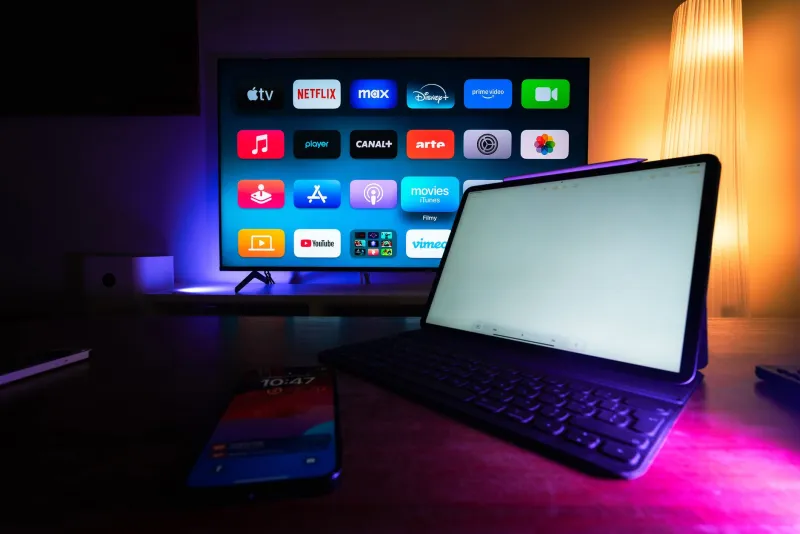
Picture this: you've just hauled the suitcases into a rental near Asheville, the kids are arguing over the thermostat, and you hit the power button on the living-room TV. Instead of a home screen, it brightly offers: "Continue watching as Kevin." Congratulations—you're now sharing a living room with a stranger's streaming queue.
That moment is awkward, but it's also a useful warning. In 2026, a rental TV is not just furniture with a screen. It's a shared computer with a remote, often signed into at least one account, sometimes several. The previous guest may have left a profile behind. The host may have left their own account logged in "for convenience." And if you're not careful, your account can be the one waving goodbye when you check out.
Here's a practical sweep for the start and end of a rental stay.
Start With the "Who's Watching?" Screen
Before you unpack the snacks, open the streaming apps you plan to use and look at the profile picker. You're checking for two things: accounts that aren't yours, and profiles that look like they belong to the last guest.
On many services, switching profiles is not the same as switching accounts. A profile is a face and a name inside one account. If you see "Kevin" or "Beach House 4" and you don't know who that is, don't click around inside their watch history. Just back out and decide whether you need that app at all.
Also check the less obvious apps. YouTube, music services, app stores, and even some TV manufacturer dashboards can stay signed in. A logged-in YouTube app can reveal subscriptions and watch history, and a signed-in app store can make purchases too easy for a kid with a remote.
Guest Mode Is Your Friend, but Read the Label
Many smart TVs and streaming apps now offer a guest profile or guest mode. Use it when it exists. It's designed to keep your viewing separate and make sign-out simpler.
But don't assume every guest mode is equal. Some are real sandboxes. Others are just a fresh profile inside your account, which still means your account is on the device. If the TV asks for a PIN to exit guest mode, great—set one you'll remember and don't use 1234.
If you're signing into your own account on a rental TV, treat it like a hotel business center: use a guest profile, skip "remember me" where possible, and don't save a payment method to the device. Add a profile PIN if the service supports it. That won't stop a determined person, but it raises the effort level from "accidental click" to "actual bad decision."
Don't Type Your Password Into a Stranger's TV
Typing a long password with a TV remote is miserable. It's also a small privacy risk, because you're entering credentials into a device you don't control. If the TV has no guest mode and the app demands a full login, consider a different route.
Stream from a browser on your own laptop or tablet instead. You keep the credentials on your device, you can log out cleanly, and you avoid leaving an account behind on the living-room screen. If you're trying to watch something that's region-locked, a plain browser proxy can help change your apparent location—but keep expectations honest. A proxy is not a magic privacy cloak, and it won't make a shared TV secure.
At Free Ninja Proxy, we tend to reach for the browser first in exactly these situations. It's simpler to close a tab than to remember which streaming app you signed into on a TV three days ago.
The Checkout Sweep
Before you zip the suitcase, do a five-minute sweep. It's boring, but it's the whole game.
- Open every streaming app you used and sign out. Don't just switch to a neutral profile.
- Check for "sign out of all devices" or "manage devices" in the app's account settings on your phone. Use it if you're unsure.
- Look at the TV's own settings for linked accounts or manufacturer accounts.
- Remove any profiles you created, if the service allows it.
- Sign out of YouTube, music apps, and app stores, not just the big streaming services.
- If the TV has a browser, clear its history and sign out of any sites you opened.
- Take a photo of the checkout checklist on your phone if you're the type who forgets. No judgment.
If You Already Left the Building
It happens. You're halfway home and suddenly remember you signed into a streaming account on the rental TV. Don't panic—just handle it from your phone.
Go into the service's account settings and find the device list or "sign out of all devices" option. Change your password if you're especially uneasy, and review recent activity. For most people, a remote sign-out is enough. For a shared rental TV, it's a reasonable response to an ordinary oversight.
The Host's Account Is Not Your Account
Sometimes the TV is already signed into the host's account. Don't snoop, don't rent a movie on their dime, and don't add your own profile to their account unless they've told you to. If the setup feels sloppy, mention it to the host at checkout. A polite note like "the living-room TV was signed into a guest account when we arrived" is helpful without being dramatic.
A Rental TV Is Just a Shared Computer With a Nicer Screen
That's the mental model. You wouldn't leave your email open on a hotel lobby PC, and you shouldn't leave your streaming account active on a rental TV. Use guest profiles, set PINs when you can, stream from your own browser when the TV setup feels sketchy, and do the checkout sweep before you walk out the door.
The next guest will thank you—or at least they won't be offered your watch history with their morning coffee.